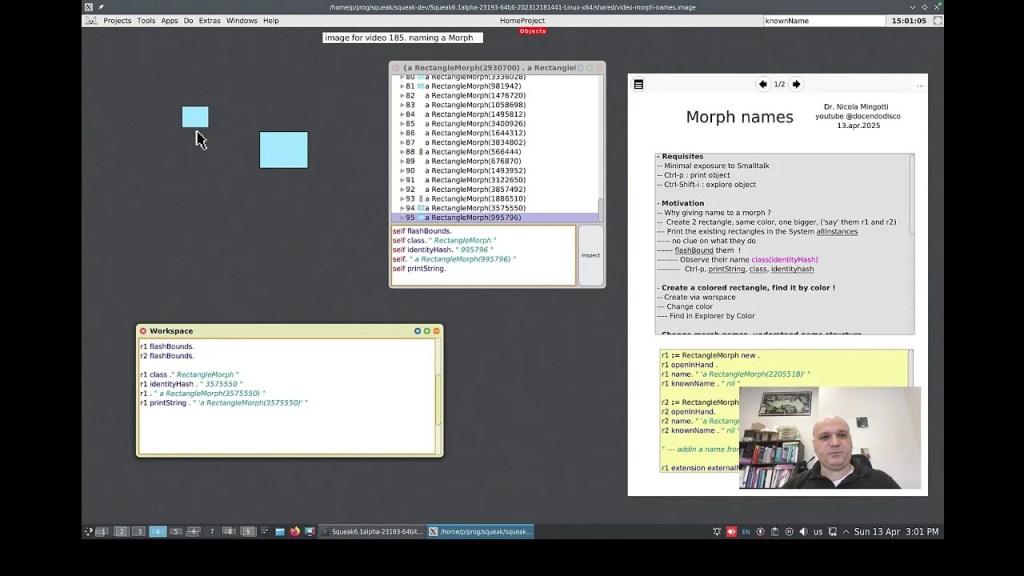
Dr. Nicola Mingotti has released a new in-depth tutorial video that explores how to identify and name Morphs in the Squeak/Smalltalk environment. If you have ever wondered how to refer to a specific Morph – for example, how to say “make that Morph yellow” – this video walks you through several effective techniques.
Throughout the video, you will learn how to use tools such as the object explorer and the workspace to better understand and interact with objects in Squeak. The tutorial introduces a variety of methods, including assigning names to Morphs, identifying them using properties such as identityHash and knownName, and inspecting objects with user interface tools that are not immediately obvious to new users.
This tutorial is particularly useful for those who wish to go beyond the basics and gain more precise control over their Squeak projects. It also includes several helpful interface tips that may be difficult to discover independently.
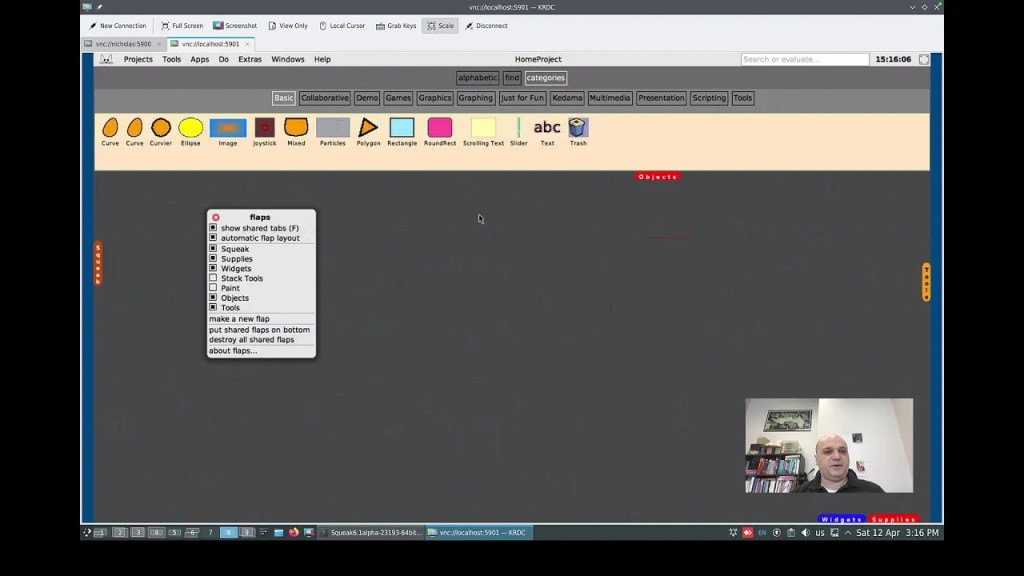
Dr. Nicola Mingotti has created a short introductory video, “Flaps in Squeak Smalltalk,” that explains how to get started using flaps in the Squeak environment. In the video, he demonstrates how to enable flaps, use them to drag objects into the Squeak World, and explores a few basic configuration options. If you are new to flaps or looking for a quick overview, this video provides a clear and helpful starting point. You can watch it here.
Have a great time with Smalltalk and keep on Squeaking!
In the last lesson, you were asked to identify the objects present in Figure 1 of Lesson 5. From the example, we will be using the object names ShooterGame, Ship, Shot, Enemy, and Score. These names have been chosen because they are clear, descriptive, and directly relate to the roles these objects will play within the game. Each name corresponds to a specific function within the game, and using such intuitive names helps to keep the code organized and easy to understand.
The reason these names were selected is tied to their roles and responsibilities within the game. As you will see in the following explanations, each object has a clear purpose. At the core of everything is ShooterGame, which provides the game screen – the boundary within which all gameplay takes place. It serves as the origin point for the entire game, coordinating the creation and management of other game elements and the overall flow of activity. The Ship represents the player’s character, allowing for movement and interaction with enemies. Shot represents the projectiles fired by the player, which interact with enemies to destroy them. Enemy objects are the targets that move across the screen and can be destroyed by shots. Finally, the Score object tracks the points the player earns by destroying enemies. The following sections of this article will further explain the roles and responsibilities of each object in detail, providing a better understanding of how they work together in the game.
Key Object Behaviors
ShooterGame: The ShooterGame object provides the screen boundary and serves as the foundation from which the entire game emerges. It defines the playable area that other objects use to determine their positions and limits. In addition to supplying this essential structure, ShooterGame also acts as the central controller of the game. It initializes the Ship and Score at the start and recreates Enemy objects when all have been eliminated. It also coordinates the overall flow of the game, including when it begins and ends, and keeps track of the main objects involved in gameplay.
Ship: The Ship is controlled by the player, and its movements will be essential to the game. You can program the Ship to move in all four directions: up, down, left, and right. Unlike many games, the ship will not be destroyed if it comes into contact with an enemy, meaning the player can continue to control the ship without worrying about direct collisions with enemies. The ship’s movement and interactions with other objects will be crucial to progressing through the game.
Shot: The Shot object represents the projectiles that the player shoots at the enemies. Shots will move in an upward direction as the player fires them. The behavior of the Shot is simple: when a shot hits an enemy, the enemy is destroyed. This interaction between the shot and the enemy is one of the core mechanics of your space shooter game.
Enemy: The Enemy objects will move left and right across the screen, adding a dynamic element to the game. There will be three Enemy objects in the game, each with its own movement pattern. As the player’s shots hit the Enemy objects, the Enemy objects will be destroyed, and the player will earn points.
Score: The Score object is responsible for keeping track of the player’s points. Each time an enemy is destroyed, the player earns 100 points, and the score increases accordingly. The score is updated when a Shot hits an Enemy. Because the Score object displays its information on the ShooterGame screen, it maintains a relationship with it.
Object Interactions
Now that each object’s role and behavior has been identified, it is important to understand how these objects interact during gameplay. Their interactions define how the game functions and how players experience the game world.
Ship and ShooterGame: The Ship appears within the game screen provided by ShooterGame. It moves in response to player input and uses the boundaries of the game screen to determine how far it can travel. The screen boundaries provided by ShooterGame limit how far the Ship can move. ShooterGame provides the space in which the Ship operates, but it does not control the Ship’s movement.
Ship and Shot: When the player activates a firing action, the Ship releases a Shot that travels upward. This interaction allows the player to engage with enemies and is central to gameplay. The firing of a Shot gives the player a way to respond to the movement of Enemy objects on the screen.
Shot and ShooterGame: The game screen provided by ShooterGame establishes the upper boundary for shots. When a Shot moves upward and reaches the top of the screen, it is removed from play. ShooterGame does not manage or direct shots, but its boundaries help determine when a Shot leaves the gameplay area.
Shot and Enemy: If a Shot comes into contact with an Enemy during its path, both the Shot and the Enemy are removed from play. This interaction is a key part of gameplay: successful hits on Enemy objects are the player’s goal. When this happens, the Score is also updated to reflect the player’s progress.
Enemy and ShooterGame:Enemy objects move left and right across the game screen using the screen’s width to guide their motion. The screen boundaries provided by ShooterGame limit how far Enemy objects can move. When an Enemy is hit by a Shot, it is removed from the game screen.
Score and ShooterGame: The Score is displayed on the game screen and increases when an Enemy is destroyed. ShooterGame provides the location where the Score is shown during gameplay. As the game progresses, the Score gives players feedback on their performance and accomplishments.
Understanding how these objects behave and interact lays the groundwork for building a playable game. By thinking carefully about each object’s role and how it connects with others, you will be better prepared to implement the necessary features in code. These foundational concepts will continue to guide your work as you move forward with designing and programming the game’s functionality.
The tutorials are now also available for use inside the Squeak development environment through the Squeak Help System. Once installed, this resource allows you to read and follow the lessons directly within Squeak, making it easy to experiment with code and concepts without leaving the environment. The Help System documentation is included as part of the downloadable resources for the game and can be added to your Squeak image just like the other game assets.
Lesson Resources
To access Lesson 6 and the full series of tutorials for building the Shooter Game, visit https://scottgibson.site/ShooterGame/. There you will find everything you need to follow along, including PDFs, Squeak Help lesson content, source code, images, sound files, and other game assets. This resource also allows you to try out the game directly in your browser using SqueakJS. Whether you are new to programming, just getting started with Squeak/Smalltalk, or building on prior experience, these materials will support you as you continue developing your own version of the game.
Dr. Nicola Mingotti has created a highly useful video tutorial, “The Squeak Smalltalk Help System”, where he demonstrates how to use and implement the Squeak Help System in your projects. In the video, Dr. Mingotti walks you through a step-by-step guide on creating documentation for your code, providing valuable insights into integrating the help system into your workflow. You can check out his video here.
Additionally, Dr. Mingotti offers supporting materials in his Swiki article here, which includes code snippets and further comments to aid your understanding.
Overview of the Squeak Help System
One of the many great features of Squeak is its rich set of help documentation. The default Squeak image comes with valuable documentation that covers topics such as: How to Use Squeak, How to Contribute to Squeak, Tutorials, The Terse Guide to Squeak, and Using WebClient and WebServer. This documentation is easily searchable, making it a highly useful resource for your projects.
Help System vs. Code Comments
It is important to note that the Squeak Help System is not intended to replace code comments. Squeak/Smalltalk provides excellent functionality for adding comments directly in your code, and these should remain the primary way to document code behavior, logic, and functionality. The Help System is designed for documentation outside the scope of code comments, such as explaining overall project goals, providing tutorials, or offering guidance on using tools and features in your project.
Features of the Help System
The help documentation system offers a variety of features, including text styling (bold, italics, strikethrough, underline), code formatting and syntax highlighting, and URLs, to name a few.
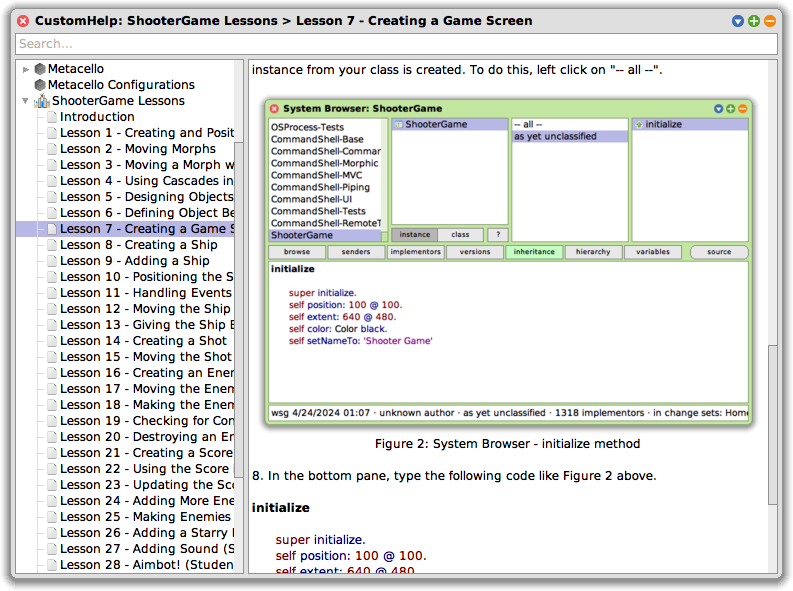
Additionally, you can add images to your documentation. This feature is currently available in the Trunk image, but you can implement it in other images as well by using its code as a reference. For the 6.0 image, you can perform a fileout of the SqueakHelpTextImage class from the Trunk image and then filein it into the 6.0 image. Alternatively, you can create your own code to implement this functionality! Thanks to Christoph Thiede for providing guidance on how he implemented this feature. You can find his post here.
How to Insert an Image into Your Help Page
Open a Workspace window.
In the Workspace, perform a “do it” on the following code: Clipboard clipboardText: Character startOfHeader asString.
In your help page window, move your cursor to the location where you want to insert the image. Paste the clipboard contents (Ctrl+v or Cmd+v on Mac). At this point, you won’t see anything yet.
(Optional) Skip this step if you prefer typing the code manually. Copy the following code, replacing /path/to/file/image.png with the actual path and filename of your image: SqueakHelpTextImage forForm: (ImageReadWriter formFromFileNamed: '/path/to/file/image.png')
Return to your help page window and move your cursor to the same location where you want to insert the image. PressAlt+5 (or Cmd+5 on Mac), then select “Custom attribute…” from the bottom of the list.
When the Input Requested box appears, paste the image code from Step 4 (or manually type it in) into the field labeled “Enter expression for text attribute:”. You should now see a shaded outline where the image will appear.
Save your changes by pressing Ctrl+s (or Cmd+s on Mac).
Your image is now successfully inserted into your help document!
Conclusion
A big thank you to Dr. Nicola Mingotti for his helpful video tutorial on using the Squeak Help System, which offers a step-by-step guide for integrating the help system into your workflow. His Swiki article is also a helpful resource with code snippets and additional comments. Be sure to check out his materials to further enhance your understanding of Squeak and the Help System!
Have a great time with Smalltalk and keep on Squeaking!
In this lesson, you will begin the process of creating your space shooter game by identifying and designing the key objects that will make up the gameplay. Having become familiar with the Squeak programming environment and basic concepts in previous lessons, it is now time to focus on the major components of the game. Understanding and determining these objects and their roles will lay the foundation for the game mechanics we will develop in upcoming lessons.
You will be building a simple, classic space shooter game. The game will feature a user-controlled ship that can shoot, enemy creatures that can be destroyed, and a score that accumulates points for each enemy destroyed. These are some of the primary objects you will work with, but as you proceed, you may discover additional objects or find that you need to adjust the roles and responsibilities of those you have already defined.
Object Roles and Responsibilities
When designing your objects, it helps to focus on two key aspects: what the object is and what it does – that is, its roles and responsibilities. For example, the spaceship object is something you control, and its responsibility is to move and shoot at enemies. Similarly, the enemy object is something that can be destroyed when hit by a shot. Other objects, like the score object, also play important roles in your game.
At this stage, you do not need to know all the objects you will need right away – this is perfectly fine! Object-oriented programming (OOP) is flexible, allowing you to modify your design as your game evolves. As you write more code, you might find that new objects are necessary, or some you initially considered may not be needed after all.
Key Questions to Guide Your Design
As you work through this process, consider the following questions to guide your object design:
How many objects can you identify in the example? Look closely at the example game screen provided in Figure 1 of Lesson 5. How many distinct elements can you identify that might need to be treated as objects? These could include characters like your ship, the enemies, a shot, or even the score. Everything you see has a purpose in the game. Take a moment to list them out and think about what each element represents.
What names would you choose for these objects? Think about what each object is and what it does. For example, if your game includes a spaceship, the object representing it might be called Ship. If there are enemies, you might have an object called Enemy. Choosing clear and descriptive names from the start will help your code stay organized and easier to understand.
How do these objects interact with each other? Once you have identified and named your objects, think about how they interact. How does your ship shoot at enemies? How do enemies react when hit? Considering these interactions early on will give you a clearer idea of how each object contributes to the overall functionality of your game.
Naming and Organizing Your Objects
An important part of designing objects is choosing meaningful names. The names you pick should make it clear what each object is and what it does in your game. At this stage, it is best to keep things clear and simple. For example, if you are designing the object that represents the player’s ship, use a name that clearly describes it, like Ship. Similarly, for enemies, choose a name that makes it obvious what the object represents.
For other objects, consider their role and responsibility. What would you call the object that represents something the player shoots? And what about the object that tracks the score? Remember, it is better to use simple, intuitive names that describe the object’s function rather than complicating things with complex names.
Do not worry if the names are not perfect at first. The most important thing is clarity. You can always refine them as your game evolves. In Squeak, renaming objects is easy, so you do not need to worry about getting everything right in the beginning.
Final Thoughts
In object-oriented programming, the process of designing and refining your objects is ongoing. You do not need to have all the objects figured out from the start, and it is okay if things are not perfect right away. The goal is to focus on understanding what each object does and how it interacts with others to create the overall game experience. Over time, you will continue to refine and expand your design.
Remember that in Smalltalk, making changes to your objects is simple – whether that involves adding new objects, renaming them, or adjusting how they behave. Do not be afraid to iterate and improve as you go along. It is all part of the learning process!
Good luck as you begin designing your space shooter game. Be sure to refer back to the example game screen shown in Figure 1 as well as the rest of Lesson 5 in the online lesson or the downloadable PDF as you proceed.
Lesson Resources
For Lesson 5 and the complete series of lessons on creating the Shooter Game, including all the necessary resources such as PDFs, source code, images, sound file, and more, visit https://scottgibson.site/ShooterGame/. This site provides everything you need to progress and also lets you play the game directly in your browser, seamlessly powered by SqueakJS. Whether you are just getting started with Squeak/Smalltalk or advancing your skills, these resources will help guide you as you move forward through the game development process.
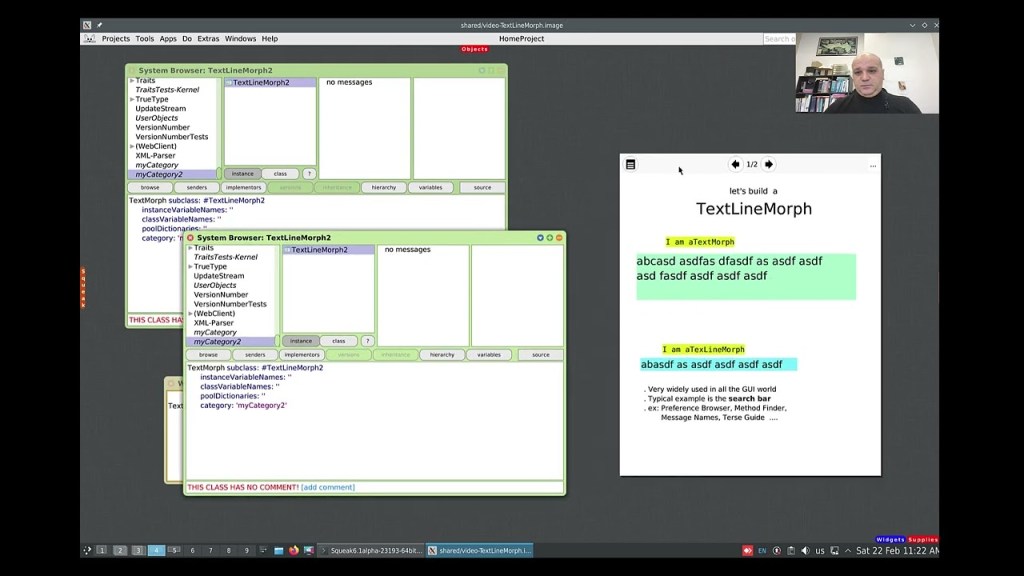
While working with Morphs can be quite easy at times, working with both text and Morphs might not always seem as straightforward. Dr. Nicola Mingotti provides a helpful video that demonstrates a commonly needed functionality in graphical interfaces, where you would typically want to accept a single line of textual data. Check out his video to see how this can be easily accomplished. You can view the video demonstration “Make a TextLineMorph in Squeak Smalltalk”here.
Have a great time with Smalltalk and keep on Squeaking!
This lesson will be the last introductory lesson (lesson practices) before we begin the actual game creation.
This lesson is simple and quick, but it introduces cascades, which are commonly used in Smalltalk code. Understanding and becoming familiar with them will help you utilize them effectively, as well as recognize them when you encounter other Smalltalk code. By using cascades, you can reduce code clutter and minimize the amount of typing needed.
The following code is an example from Lesson 3. This code completes messages by using a period which in Smalltalk is the statement separator. Placing a period between two expressions turns them into independent statements.
Even though the code looks simpler, it is important to understand what is happening. When the same object is the receiver of a sequence of consecutive messages, you do not need to repeat it. You can remove the repeated receiving object and replace the ending period with a semicolon (;). So, the basic rules for cascades are:
Cascaded expressions are separated by semicolons
All cascaded messages share the same receiver as the last message executed before the first semicolon
So, if it is as simple as replacing periods with semicolons, why does this lesson’s example not work if a semicolon were placed after “SimpleButtonMorph new”?
SimpleButtonMorph is a class, not an instance of that class. This means that you cannot send instance messages directly to the class itself. A class can receive class messages, but in this example, we are sending instance messages, which can only be sent to instances of the class, not the class itself. Therefore, to interact with the instance, you must first create an instance by sending the message “new” to SimpleButtonMorph. It is this instance of SimpleButtonMorph that can receive instance messages. In other words, all the cascaded messages are sent to the object created by “SimpleButtonMorph new”, demonstrating how a sequence of cascaded messages can be sent to the result of an expression.
In conclusion, understanding and using cascades in Smalltalk can greatly simplify your code, making it more readable and reducing redundancy. By chaining multiple messages to the same object in a single expression, you can streamline your code and focus on the logic rather than repetitive syntax. With this knowledge, you can write more efficient, elegant Smalltalk code and recognize cascading patterns in other code you encounter.
For Lesson 4 and the complete series of lessons on creating the Shooter Game, including all the necessary resources such as PDFs, source code, images, sound file, and more, visit https://scottgibson.site/ShooterGame/. This site not only provides everything you need to progress but also allows you to play the game directly in your browser using SqueakJS. Whether you are just getting started with Squeak/Smalltalk or advancing your skills, these resources will help guide you as you move forward through the game development process.
In this lesson, we will learn about blocks in Smalltalk. A block is a small piece of code that can be treated as an object. It is often used to perform actions or calculations when needed. Blocks are written inside square brackets, and they can be passed around or executed by other parts of the program. While blocks are commonly used in programs to make things happen, for now, think of them as a way to understand how code can be organized and applied. This lesson is a simple introduction to blocks, so you do not need to fully understand everything about them yet. By the end of the lesson, you will have a better idea of what blocks are and how they work in code. You will also learn how to use blocks to interact with your EllipseMorph.
We will also use a simple button morph to interact with our EllipseMorph. By clicking the button, you will be able to make the EllipseMorph move. This lesson will show you how to create a simple graphical button that can then be used to interact with your morph. This is a nice way of interacting with the morph without having to do much coding for now. It allows you to focus on understanding the basic concepts before diving into more complex programming. As you progress, you will learn how to build more advanced interactions and customize the behavior of your morphs.
Additional Resources
For additional learning, there are several resources that can help you dive deeper into the topics we covered. You can start by exploring the Block Swiki page here to get a better understanding of how blocks work in Smalltalk. If you want to learn more specifically about the BlockClosure class, check out a detailed explanation here, also a Swiki article. Another helpful resource is the Terse Guide to Squeakonline, which is always available within the Squeak image under Help -> Terse Guide to Squeak. Lastly, the Squeak by Example book is an excellent resource for exploring Squeak and Smalltalk in more detail, and you can read it here. These resources will provide you with more in-depth information and examples to support your learning.
For the complete series of lessons on creating the Shooter Game, including all the necessary resources like PDFs, source code, images, sound files, and more, visit https://scottgibson.site/ShooterGame/. This site not only offers everything you need to progress but also lets you play the game directly in your browser using SqueakJS. Whether you are just getting started with Squeak/Smalltalk or are advancing your skills, these resources will help guide you as you progress through the game development process.
In this lesson, we will focus on making Morphs move, an essential step in creating interactive and engaging gameplay. You will learn how to send messages to Morph objects, enabling them to change their position on the screen. Movement is a key part of any game, whether it involves your ship, enemies, or projectiles. By the end of this lesson, you will understand different ways to move Morphs relative to a specific location, giving you basic control over their movement in your game.
To begin, it is important to understand how Morph movement is accomplished in Squeak, a version of Smalltalk, as not all Smalltalk implementations support Morphs, which is what we are using here. Squeak is an object-oriented language, meaning everything is an object. Objects can communicate with each other by sending messages, which is how actions and information are requested in Squeak. Much like how people communicate by sending messages to one another, objects in Squeak send messages to request actions or receive information, or both.
Understanding Messages in Smalltalk
In Smalltalk, there are three types of messages: unary, binary, and keyword. Unary messages have the highest precedence, followed by binary messages, and then keyword messages. These different types of messages help objects interact in various ways.
Unary messages are messages that are sent to an object without arguments.
Binary messages consist of special characters like +, -, or @, and each one takes exactly one argument to perform an action or computation involving two objects.
Keyword messages consist of one or more keywords, each ending with a colon (:), and each keyword takes an argument.
The Difference Between position: and position
In this lesson, you will focus on understanding how to use the position messages. The first important thing to know is the difference between two messages that seem similar but actually work in different ways: position and position:. They both deal with the position of Morphs, but they are used differently.
The message position, without a colon, is a unary message. It does not require any arguments and simply retrieves the current position of the Morph.
The message position:, with a colon at the end, is a keyword message. It can receive a value or an argument, which is used to change the position of the Morph.
This difference in how the messages are structured is important because it tells Squeak how to process them. The position message simply retrieves the current location of the Morph, while the position: message accepts an argument to set or change the Morph’s location.
Understanding How to Control Morph Movement
By understanding how messages work in Squeak, you can effectively control the movement of Morphs. Each message, whether unary, binary, or keyword, enables you to send specific instructions to objects, helping them change their state or position on the screen. This knowledge of messages forms the basis of interacting with objects in your game.
As you progress through the lesson, you will learn how to send different types of messages to Morphs, allowing you to interact with them in various ways. This skill will be crucial for making your game dynamic and interactive, enabling you to work with Morphs to create engaging gameplay elements.
By the end of this lesson, you will have a good foundation in how messages are used to control movement in Squeak, and you will be ready to apply this knowledge in your game.
Final Notes
Please remember to save your Squeak image after each lesson. This way, if you ever encounter a problem with your code, you can always close the image and reopen it from where you last saved it. It would be helpful to save your Squeak image after you have successfully completed each lesson, so you can always reopen the image from the last completed lesson in case something unexpected happens while proceeding through the current lesson.
Note that the extra parentheses in this lesson are not necessary, but they may help new learners visualize the objects conceptually, especially at the start. The syntax is still correct and can be adjusted later, so nothing harmful is being introduced. At this point, it seemed better to provide a visual, conceptual understanding through the code, rather than focusing solely on minimizing syntax. Future lesson code will not include these.
Lesson Resources
For the complete series of lessons on creating the Shooter Game, including all the necessary resources like PDFs, source code, images, sound files, and more, visit https://scottgibson.site/ShooterGame/. This site not only offers everything you need to progress but also lets you play the game directly in your browser using SqueakJS. Whether you are just getting started with Squeak/Smalltalk or are advancing your skills, these resources will guide you through each step of the game development process, helping you apply the techniques you learned in this lesson, such as moving Morphs and controlling game objects.
This article kicks off a series designed to introduce programming to beginners through the creation of a simplified space shooter game using Squeak, an open-source implementation of the Smalltalk programming language. By breaking down the process into a series of manageable lessons, the aim is to provide an accessible and interactive entry point into the world of programming. This series will guide learners through the process of building a game from the ground up while introducing them to essential programming concepts along the way. Upon completion, and with the accompanying resources such as source code, images, and a sound file, students will have everything they need to recreate or enhance the game.
Who This Series is For
The intended audience for this article and the accompanying series includes both young learners and adults who are new to coding or to Smalltalk. Whether you are a student, educator, or hobbyist, these lessons are tailored to make programming approachable and enjoyable. Throughout the series, we will dive into key programming principles – such as object-oriented design, the concept of “Morphs” in Squeak, and more – at a beginner-friendly pace. Each lesson is supplemented with practical examples. If you are interested in starting with something fun and educational, and you are curious about how games are made or how Smalltalk can be used in a modern development environment, this series is for you.
Why a Game, and Why Squeak/Smalltalk?
So why a game, and why in Squeak/Smalltalk? Why not? Everybody understands the domain of games, or gaming. That is, the mechanics, interactions, and goals – such as managing player input, controlling game characters, defining win/loss conditions, and creating interactive environments. Games are a universal medium that spans across ages and cultures, from simple board games to complex video games. This familiarity makes games an excellent starting point for teaching programming concepts, as the mechanics and goals are intuitive to most people. Moreover, games require a variety of programming elements to function, such as managing user input, handling graphics, implementing game rules, designing levels, and even creating sound and music. These components provide a rich environment for introducing and practicing key programming skills – like decision-making, loops, object-oriented design, and event handling – while keeping learners engaged with a fun, practical outcome.
Why Squeak/Smalltalk is the Right Tool
Squeak makes all of this very easy, and you do not need to learn anything more than Smalltalk to get started. The language is intuitive and enjoyable to use, and Squeak provides a powerful and engaging development environment. While games may not balance your bank account, they can serve as an excellent resource for learning programming or a new language. Squeak/Smalltalk, in particular, makes this process both accessible and enjoyable.
How This Series Came to Be
This article introduces a series of lessons based on a simplified version of a space shooter game I developed using Squeak. The project, which was both fun to create and my first full Squeak program, turned out to be an ideal way to teach my middle school-aged son Smalltalk, as well as the fundamentals of object-oriented programming (OOP). Although he had prior programming experience, he quickly grasped the language due to its simplicity and the interactive nature of the environment. The natural syntax of Smalltalk, combined with the user-friendly environment, not only made it easier for him to solve problems but also allowed him to be more creative, without needing to alter his natural problem-solving approach. Both the language and the environment “got out of his way,” enabling him to express himself more easily and effectively.
What Will Be Covered in the Series
The lessons in this series are designed to introduce key programming concepts – such as classes, methods, debugging, and user interface design – through the process of building and modifying a game. You can find the complete list of lessons on the Shooter Game site. Each lesson was written daily, and I discussed topics both before and during the lesson to provide additional detail and ensure a deeper understanding. This approach allowed me to offer relevant explanations exactly when they were needed, based on my son’s progress and evolving needs.
For each article, I will aim to provide additional helpful information that may not be included in the lessons themselves. If you feel any details are missing or could be useful, please let me know, and I would be happy to provide further information.
Interactive, Live Coding Approach
The hands-on, live coding approach in these lessons encourages learners to experiment and learn in real time, making the process both educational and enjoyable. Each lesson also comes with a downloadable PDF version of the lesson page for easy offline reference or printing. The entire series progressively builds upon itself, allowing learners to gradually develop their programming skills as they move through the lessons.
Lesson 1: Creating and Positioning Morphs
For today’s lesson, we will dive into the first step in building our game: “Creating and Positioning Morphs.” In this lesson, we will introduce the concept of a Morph and explore how to create and manipulate these visual objects within the Squeak environment. Understanding Morphs is a crucial part of game development in Squeak, as they serve as the foundation for all the interactive elements of the game.
What is a Morph?
In Squeak, a Morph is an interactive graphical object. Like everything in Smalltalk, a Morph can be interacted with through messages. It is not a static, lifeless image on the screen, but rather a lively object waiting to interact with its environment. You can send a message to a Morph to receive information about it or to perform an operation. Everything you see when running Squeak is a Morph object. This presents some very exciting capabilities, as it provides you with the ability to create graphical objects, which can interact with the world (the entire Squeak environment – its display screen in this case) and the world can interact with them.
The Squeak world works using a coordinate system. The coordinate values can be absolute or relative. Each coordinate value is represented as a point, which has an X coordinate and a Y coordinate. For example, a Squeak world (remember, this will be the full size of the display screen in the Squeak environment) with a display size of 1024×768:
The point 0@0 is the top-left corner of the screen.
The point 0@768 is the lower-left corner of the screen.
The point 1024@768 is the lower-right corner of the screen.
The point 1024@0 is the top-right corner of the screen.
Every point in between represents a location within the world. Points can exist outside of that world too; however, they would not be visible.
In this game, everything is a subclass of Morph, so you will be using Morphs a lot.
Before beginning Lesson 1, it would be very helpful to read Chapter 1 of the Squeak By Example book (available as a free PDF, SBE-6.0.pdf), an excellent resource for learning Squeak and understanding its environment. Afterward, you can go straight to the lesson here.
Additional Resources
To access the full series of lessons and resources for the space shooter game, Shooter Game, visit the lesson site at https://scottgibson.site/ShooterGame/. There, you will find the complete set of lessons and their associated PDFs, along with the source code, images, the sound file, and other useful resources. You can even play the game directly in your browser (using the awesome SqueakJS!). Whether you are a beginner or looking to learn more about Squeak/Smalltalk, its environment, and its tools, these resources will guide you through each step and provide everything you need to recreate or enhance the game.






 The Weekly Squeak