Category: Video

  • Naming and Referencing Morphs in Squeak/Smalltalk

    Naming and Referencing Morphs in Squeak/Smalltalk

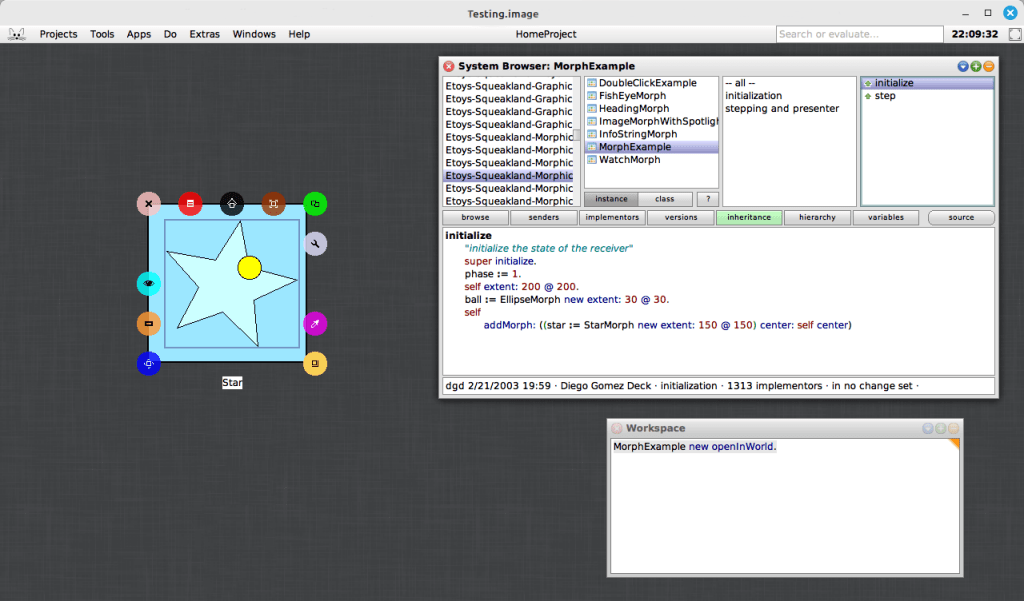
    Dr. Nicola Mingotti has released a new in-depth tutorial video that explores how to identify and name Morphs in the Squeak/Smalltalk environment. If you have ever wondered how to refer to a specific Morph – for example, how to say “make that Morph yellow” – this video walks you through several effective techniques.

    Throughout the video, you will learn how to use tools such as the object explorer and the workspace to better understand and interact with objects in Squeak. The tutorial introduces a variety of methods, including assigning names to Morphs, identifying them using properties such as identityHash and knownName, and inspecting objects with user interface tools that are not immediately obvious to new users.

    This tutorial is particularly useful for those who wish to go beyond the basics and gain more precise control over their Squeak projects. It also includes several helpful interface tips that may be difficult to discover independently.

    Check out the video here!

    Have a great time with Smalltalk and keep on Squeaking!

  • What Are Flaps in Squeak?

    What Are Flaps in Squeak?

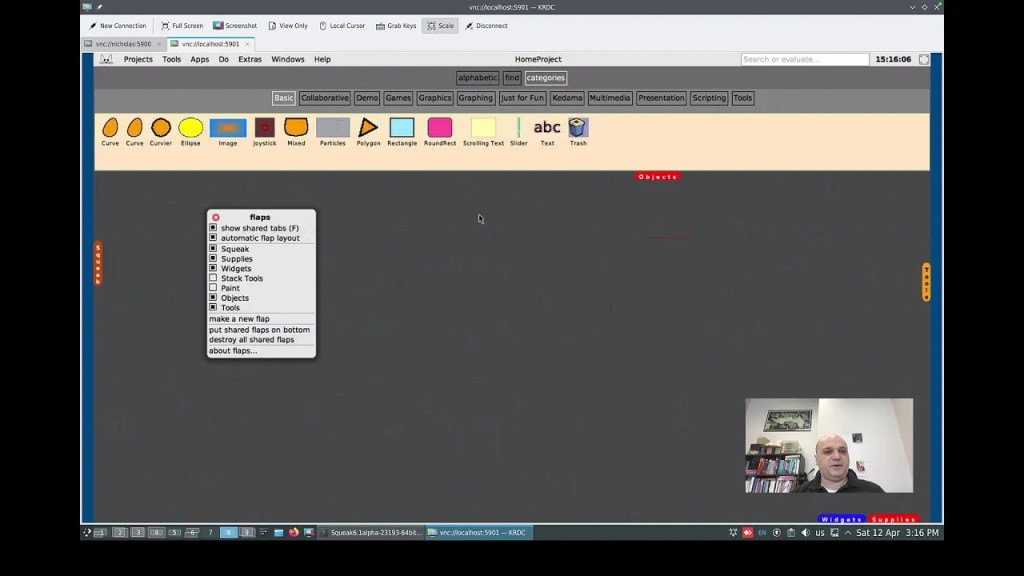
    Dr. Nicola Mingotti has created a short introductory video, “Flaps in Squeak Smalltalk,” that explains how to get started using flaps in the Squeak environment. In the video, he demonstrates how to enable flaps, use them to drag objects into the Squeak World, and explores a few basic configuration options. If you are new to flaps or looking for a quick overview, this video provides a clear and helpful starting point. You can watch it here.

    Have a great time with Smalltalk and keep on Squeaking!

  • Using the Squeak Help System for Your Projects

    Using the Squeak Help System for Your Projects

    Dr. Nicola Mingotti has created a highly useful video tutorial, “The Squeak Smalltalk Help System”, where he demonstrates how to use and implement the Squeak Help System in your projects. In the video, Dr. Mingotti walks you through a step-by-step guide on creating documentation for your code, providing valuable insights into integrating the help system into your workflow. You can check out his video here.

    Additionally, Dr. Mingotti offers supporting materials in his Swiki article here, which includes code snippets and further comments to aid your understanding.

    Overview of the Squeak Help System

    One of the many great features of Squeak is its rich set of help documentation. The default Squeak image comes with valuable documentation that covers topics such as: How to Use Squeak, How to Contribute to Squeak, Tutorials, The Terse Guide to Squeak, and Using WebClient and WebServer. This documentation is easily searchable, making it a highly useful resource for your projects.

    Help System vs. Code Comments

    It is important to note that the Squeak Help System is not intended to replace code comments. Squeak/Smalltalk provides excellent functionality for adding comments directly in your code, and these should remain the primary way to document code behavior, logic, and functionality. The Help System is designed for documentation outside the scope of code comments, such as explaining overall project goals, providing tutorials, or offering guidance on using tools and features in your project.

    Features of the Help System

    The help documentation system offers a variety of features, including text styling (bold, italics, strikethrough, underline), code formatting and syntax highlighting, and URLs, to name a few.

    Additionally, you can add images to your documentation. This feature is currently available in the Trunk image, but you can implement it in other images as well by using its code as a reference. For the 6.0 image, you can perform a fileout of the SqueakHelpTextImage class from the Trunk image and then filein it into the 6.0 image. Alternatively, you can create your own code to implement this functionality! Thanks to Christoph Thiede for providing guidance on how he implemented this feature. You can find his post here.

    How to Insert an Image into Your Help Page

    1. Open a Workspace window.
    2. In the Workspace, perform a “do it” on the following code:
      Clipboard clipboardText: Character startOfHeader asString.
    3. In your help page window, move your cursor to the location where you want to insert the image. Paste the clipboard contents (Ctrl+v or Cmd+v on Mac). At this point, you won’t see anything yet.
    4. (Optional) Skip this step if you prefer typing the code manually. Copy the following code, replacing /path/to/file/image.png with the actual path and filename of your image:
      SqueakHelpTextImage forForm: (ImageReadWriter formFromFileNamed: '/path/to/file/image.png')
    5. Return to your help page window and move your cursor to the same location where you want to insert the image. Press Alt+5 (or Cmd+5 on Mac), then select “Custom attribute…” from the bottom of the list.
    6. When the Input Requested box appears, paste the image code from Step 4 (or manually type it in) into the field labeled “Enter expression for text attribute:”. You should now see a shaded outline where the image will appear.
    7. Save your changes by pressing Ctrl+s (or Cmd+s on Mac).

    Your image is now successfully inserted into your help document!

    Conclusion

    A big thank you to Dr. Nicola Mingotti for his helpful video tutorial on using the Squeak Help System, which offers a step-by-step guide for integrating the help system into your workflow. His Swiki article is also a helpful resource with code snippets and additional comments. Be sure to check out his materials to further enhance your understanding of Squeak and the Help System!

    Have a great time with Smalltalk and keep on Squeaking!

  • Using TextLineMorph in Squeak for Single-Line Text Input in Graphical Interfaces

    Using TextLineMorph in Squeak for Single-Line Text Input in Graphical Interfaces

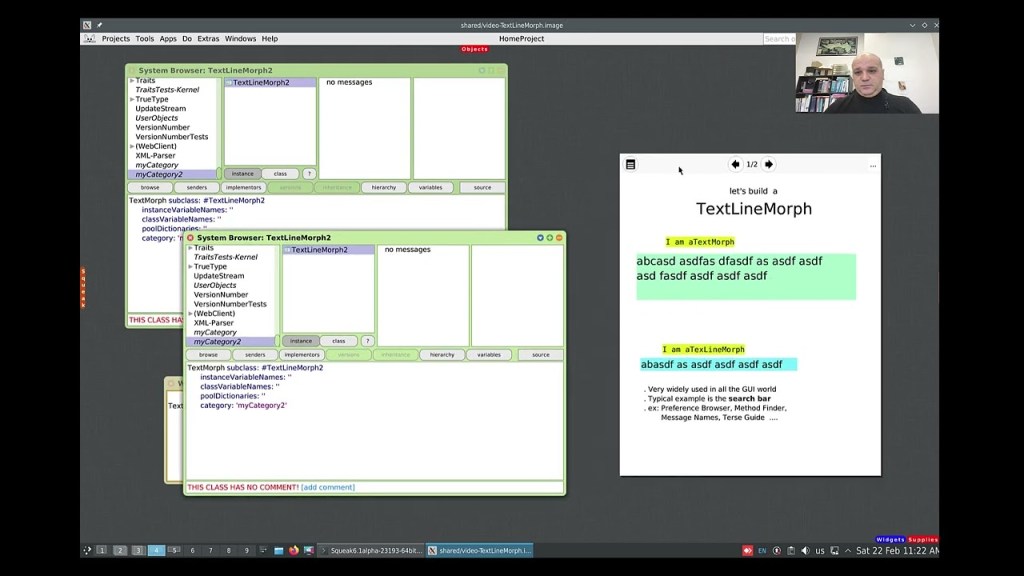
    While working with Morphs can be quite easy at times, working with both text and Morphs might not always seem as straightforward. Dr. Nicola Mingotti provides a helpful video that demonstrates a commonly needed functionality in graphical interfaces, where you would typically want to accept a single line of textual data. Check out his video to see how this can be easily accomplished. You can view the video demonstration “Make a TextLineMorph in Squeak Smalltalk” here.

    Have a great time with Smalltalk and keep on Squeaking!
  • New Video Demonstrating Morphic Animation

    New Video Demonstrating Morphic Animation

    Would you like to view a demonstration of how to take advantage of the Morphic animation system in Squeak? If so, you are in luck! A new video has recently been posted that takes you through the steps of doing just that. The Morphic animation system in Squeak offers a simple way to animate and interact with objects in your environment. Whether you are building basic animations or more complex interactive systems, Morphic provides a wealth of possibilities for both beginners and seasoned developers alike. You can watch the video titled “A BlinkingRectangle Morph in Smalltalk” here.

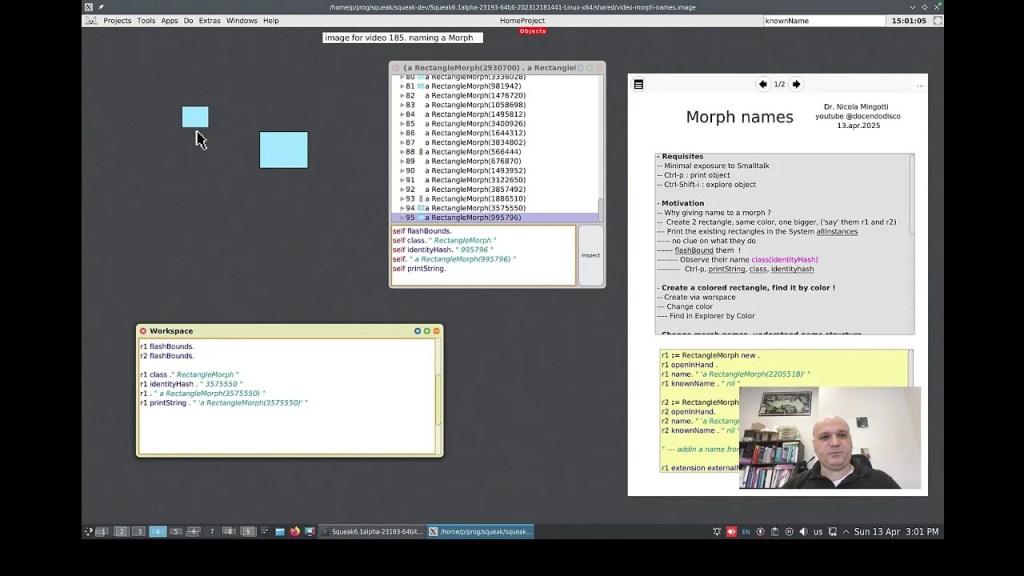
    In addition to the video tutorial, you can explore a very simple, yet powerful example included in the Squeak image. This example morph can be found with the somewhat hard-to-remember name, MorphExample. By evaluating “MorphExample new openInWorld” (without the surrounding parentheses) in a Workspace, you can discover how easy it is to make morphs perform various actions. This demonstration emphasizes the beauty of the Morphic system’s simplicity: you do not need to write complex code to animate objects. Instead, you can focus on creating rich, interactive applications and interfaces with just a few lines of code.

    One of the most compelling aspects of the Morphic system is how effortlessly it enables dynamic, real-time interaction, especially when used within the Smalltalk environment. Compared to many other graphical frameworks, where handling interactions often requires more complex event handling and manual updates, Morphic allows you to create interactive, animated objects with minimal code. For example, you can open a halo on the star, resize or rotate it, and the animation will continue to perform and adjust dynamically to the star’s new dimensions. This responsiveness highlights the simplicity and flexibility of the Morphic system, making it an ideal choice for building interactive systems without the need for manual recalculations or updates.

    If you are interested in delving deeper into the Morphic system, you can access Chapter 12 of Squeak by Example for more detailed explanations and examples. The book offers a clear guide to the system, making it an excellent resource for developers looking to better understand Morphic. You can read the full chapter here.

    For those who want to learn more about using halos with morphs in Squeak, there is another excellent video resource available. The video “Morphic Halo icons in Squeak Smalltalk” demonstrates how to interact with the Morphic halo icons to manipulate morphs in the Squeak environment. Whether you are new to Squeak or already familiar with the basics, this video provides valuable insights into how halos can be used to interact with morphs. Check it out here.

    Have a great time with Smalltalk and keep on Squeaking!
  • UK Smalltalk User Group Releases Archived Presentation Videos on YouTube

    UK Smalltalk User Group Releases Archived Presentation Videos on YouTube

    The holidays may be over, but the presents are still arriving from the UK Smalltalk User Group! Videos of previous presentations have been released over the past month, covering a variety of interesting topics–a total of 57 as of this writing! Be sure to check out their new YouTube channel at https://www.youtube.com/@UKSTUG. Also, be sure to visit their homepage at https://www.uksmalltalk.org/, and if you would like to attend any meetings, their Meetup site can be found at https://www.meetup.com/ukstug/.

    Have a great time with Smalltalk and keep on Squeaking!

  • Doug Engelbart, American inventor and computing legend, Dies at 88.

    Sad news.  Most of the Smalltalk community knows all about Doug through stories shared by Alan.  Some of you have been lucky enough to have met him.  Much of what we know about computers was invented by some really terrific minds.  Today we lost one of the best.  It is amazing how far technology has progressed in such a short time.  We are lucky to live in a time that still has so many of the great inventors still alive.  It’s an amazing time to be standing the the shoulders of giants.  Alan Kay reminds us that all of the present is not made up of all of the past.  Only part of what was done back then survived and is in use today.  Some of our history is better than our present.  We should all take a moment and remember that past.

    I couldn’t help but notice that Doug has three controls.  The Mouse the keyboard and what?  A function menu?  A view selector? Just what is that left hand doing?  I know I’ve tried to explain ctrl-c to people and even today many people have no idea that keyboard shortcuts exist.  Just a thought.

    http://www.nytimes.com/2013/07/04/technology/douglas-c-engelbart-inventor-of-the-computer-mouse-dies-at-88.html?pagewanted=all&_r=3&

    http://gigaom.com/2013/07/03/doug-engelbart-american-inventor-computing-legend-passes-away/

  • Squeak Video Tutorials, 74 and counting!

    Chris Cunnington reminded the Squeak-dev mailing list that for a while now he’s been creating video tutorials explaining aspects of Squeak. In fact he’s been working at this for so long that he now has over 70 videos available!

    The videos give snappy introductions to topics as varied as: using SqueakSource to download Squeak applications; the mysteries of the red, blue, and yellow mouse buttons; how to use morphs; and using Croquet to interact in 3D environments (as seen above).

    If you want to learn about Squeak, or to find out more about Squeak applications you’ve never used before, these are a great resource, so head over to Chris’ Smalltalk Medicine Show channel on YouTube. If you know of other great videos for newcomers to Squeak and Smalltalk, please let us know in the comments.