
Tag: video-games

  • Lesson 7: Programming the Shooter Game in Squeak/Smalltalk

    Lesson 7: Programming the Shooter Game in Squeak/Smalltalk

    Let us dive into the exciting process of game creation!

    In this lesson, you will begin writing the actual code that brings your game to life. The previous lessons prepared you by helping define the game’s key objects and their responsibilities. Now, with those ideas in place, it is time to create your first class in Smalltalk: ShooterGame.

    This class will act as the canvas for everything else that follows. Though it may seem plain at first, much like an artist’s blank canvas, your ShooterGame Morph will soon host a lively collection of interactive game objects – ships, enemies, shots, and more. Unlike a painting, however, this canvas can respond, animate, and change as your code evolves.

    Using the System Browser

    The work begins in the System Browser, a powerful tool within the Squeak environment where you can write, view, and organize your code. You can open the System Browser from the main menu under Tools → Browser, or by left-clicking on the desktop background and selecting Browser.

    This browser is not the only place you can write code in Squeak, but it is the one you will use most frequently as you build and modify your game. You will use it to define classes, write methods, organize your code into categories, and explore existing functionality that your objects can build on.

    ShooterGame as a Morph

    When you create your ShooterGame class, you define it as a subclass of Morph. This design choice is essential. A Morph is a graphical object in Squeak that can be added to the screen, moved around, colored, resized, and interacted with. By making ShooterGame a Morph, you give it the ability to appear on the screen and act as a visible, interactive container for the other game elements.

    This inheritance relationship also means that ShooterGame will share the capabilities of Morphs – like positioning and drawing – while allowing you to add new, game-specific behavior through your own methods.

    Understanding Initialization

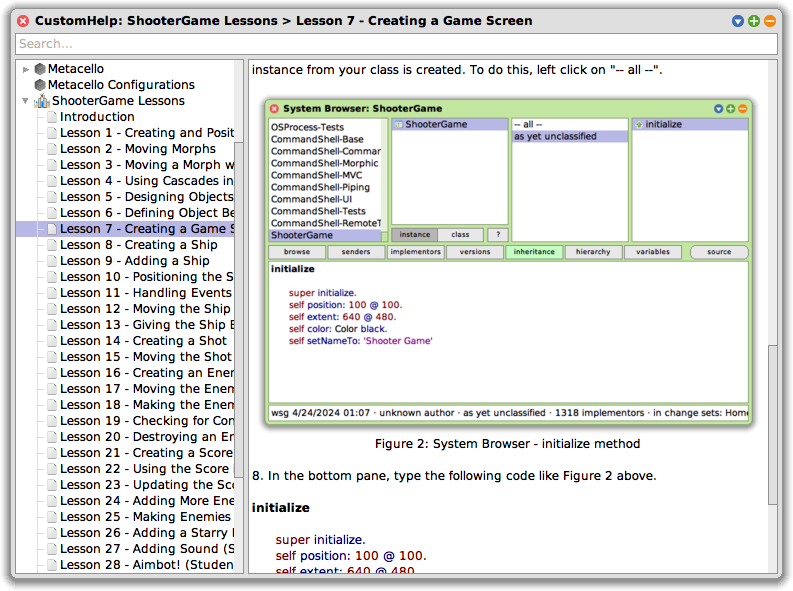
    After defining your class, you will write its first method: initialize. This is a special method that sets up a new instance of the class when it is created. It is also an ideal place to define how the object should appear and behave initially.

    An instance of a class is the actual object that gets created from that class. Think of the class as a blueprint or a set of instructions – like the design for a computer. That design tells you what the computer will have and how it will work. But until someone actually builds a computer from that design, you do not have a real one. The same is true in programming: the class is the design, and an instance is the real, usable object created from that design. Every time you create a new object from a class, you are making a new instance of it. And because everything in Smalltalk is an object, even the class itself is a kind of object – one that can do things, not just describe them!

    Inside the method, you will encounter super initialize. This line is important. It tells the system to first run the initialize behavior of the parent class – in this case, Morph – before adding your custom setup code. An initialize method should always start by sending super initialize. Skipping this line can lead to unexpected issues because it would prevent an object from preparing itself properly.

    Following that, you will define the Morph’s position and size using the position: and extent: messages. In Squeak, extent refers to the width and height of the Morph – think of it as how much space it occupies on the screen. The coordinate system in Squeak starts at the top-left corner of the screen (0 @ 0), and each point is written as an x and y pair (e.g., 640 @ 480). These lines of code determine where your game window will appear and how large it will be.

    You also set the background color to black and give the object a name using setNameTo:. These finishing touches help establish your game’s visual style and identity.

    Positioning and Sizing

    In Squeak, the World refers to the entire display area of the environment – the space where all graphical objects (Morphs) appear and interact. It is the backdrop of your development tools, your game, and the broader environment in which your game objects will live and move. Even the tools you use to write your code – such as the System Browser – are Morphs themselves, sharing the same space and able to interact with the same environment as your game.

    Squeak uses a coordinate system to place and size Morphs on the screen. The top-left corner of the World is the origin (0 @ 0). When you set a Morph’s position to 100 @ 100, it will appear 100 points from the left and 100 points from the top. The extent describes the Morph’s width and height – how much space it will take up on the screen. These values give you precise control over where and how your game interface is laid out.

    Seeing the Results

    Even after completing just this lesson, you will be able to see the first visible result of your code. Though the game is not yet playable, the space in which it will take shape is now visible and ready for action. The foundation is laid, and every lesson from here will build upon it.

    Remember that these lessons are designed for live coding – you are encouraged to run, modify, and explore your work as you go. That is one of the great strengths of Smalltalk. The lessons in this series are designed for live coding, meaning the game does not need to be closed and restarted when changes are made. You can follow through the lessons just as easily without live coding; however, you may not learn as many topics, as some only arise from using live coding. Also, remember that, unlike some other programming languages, Smalltalk does not require a final period (.) at the end of a method. The final period in the last expression is optional.

    And finally, remember to save your work once you have successfully completed the lesson. This ensures you can pick up right where you left off next time or provides a good recovery option if something should go wrong.

    Lesson Resources

    To access Lesson 7 and the full series of tutorials for building the Shooter Game, visit https://scottgibson.site/ShooterGame/. There you will find everything you need to follow along, including PDFs, Squeak Help lesson content, source code, images, sound files, and other game assets. This site not only provides everything you need to progress but also even allows you to play the game directly in your browser using SqueakJS. Whether you are just getting started with Squeak/Smalltalk or advancing your skills, these resources will help guide you as you move forward through the game development process.

    Have a great time with Smalltalk and keep on Squeaking!
  • Lesson 6: Programming the Shooter Game in Squeak/Smalltalk

    Lesson 6: Programming the Shooter Game in Squeak/Smalltalk

    Lesson 6 – Object Interaction and Behavior

    In the last lesson, you were asked to identify the objects present in Figure 1 of Lesson 5. From the example, we will be using the object names ShooterGame, Ship, Shot, Enemy, and Score. These names have been chosen because they are clear, descriptive, and directly relate to the roles these objects will play within the game. Each name corresponds to a specific function within the game, and using such intuitive names helps to keep the code organized and easy to understand.

    The reason these names were selected is tied to their roles and responsibilities within the game. As you will see in the following explanations, each object has a clear purpose. At the core of everything is ShooterGame, which provides the game screen – the boundary within which all gameplay takes place. It serves as the origin point for the entire game, coordinating the creation and management of other game elements and the overall flow of activity. The Ship represents the player’s character, allowing for movement and interaction with enemies. Shot represents the projectiles fired by the player, which interact with enemies to destroy them. Enemy objects are the targets that move across the screen and can be destroyed by shots. Finally, the Score object tracks the points the player earns by destroying enemies. The following sections of this article will further explain the roles and responsibilities of each object in detail, providing a better understanding of how they work together in the game.

    Key Object Behaviors

    • ShooterGame: The ShooterGame object provides the screen boundary and serves as the foundation from which the entire game emerges. It defines the playable area that other objects use to determine their positions and limits. In addition to supplying this essential structure, ShooterGame also acts as the central controller of the game. It initializes the Ship and Score at the start and recreates Enemy objects when all have been eliminated. It also coordinates the overall flow of the game, including when it begins and ends, and keeps track of the main objects involved in gameplay.
    • Ship: The Ship is controlled by the player, and its movements will be essential to the game. You can program the Ship to move in all four directions: up, down, left, and right. Unlike many games, the ship will not be destroyed if it comes into contact with an enemy, meaning the player can continue to control the ship without worrying about direct collisions with enemies. The ship’s movement and interactions with other objects will be crucial to progressing through the game.
    • Shot: The Shot object represents the projectiles that the player shoots at the enemies. Shots will move in an upward direction as the player fires them. The behavior of the Shot is simple: when a shot hits an enemy, the enemy is destroyed. This interaction between the shot and the enemy is one of the core mechanics of your space shooter game.
    • Enemy: The Enemy objects will move left and right across the screen, adding a dynamic element to the game. There will be three Enemy objects in the game, each with its own movement pattern. As the player’s shots hit the Enemy objects, the Enemy objects will be destroyed, and the player will earn points.
    • Score: The Score object is responsible for keeping track of the player’s points. Each time an enemy is destroyed, the player earns 100 points, and the score increases accordingly. The score is updated when a Shot hits an Enemy. Because the Score object displays its information on the ShooterGame screen, it maintains a relationship with it.

    Object Interactions

    Now that each object’s role and behavior has been identified, it is important to understand how these objects interact during gameplay. Their interactions define how the game functions and how players experience the game world.

    • Ship and ShooterGame: The Ship appears within the game screen provided by ShooterGame. It moves in response to player input and uses the boundaries of the game screen to determine how far it can travel. The screen boundaries provided by ShooterGame limit how far the Ship can move. ShooterGame provides the space in which the Ship operates, but it does not control the Ship’s movement.
    • Ship and Shot: When the player activates a firing action, the Ship releases a Shot that travels upward. This interaction allows the player to engage with enemies and is central to gameplay. The firing of a Shot gives the player a way to respond to the movement of Enemy objects on the screen.
    • Shot and ShooterGame: The game screen provided by ShooterGame establishes the upper boundary for shots. When a Shot moves upward and reaches the top of the screen, it is removed from play. ShooterGame does not manage or direct shots, but its boundaries help determine when a Shot leaves the gameplay area.
    • Shot and Enemy: If a Shot comes into contact with an Enemy during its path, both the Shot and the Enemy are removed from play. This interaction is a key part of gameplay: successful hits on Enemy objects are the player’s goal. When this happens, the Score is also updated to reflect the player’s progress.
    • Enemy and ShooterGame: Enemy objects move left and right across the game screen using the screen’s width to guide their motion. The screen boundaries provided by ShooterGame limit how far Enemy objects can move. When an Enemy is hit by a Shot, it is removed from the game screen.
    • Score and ShooterGame: The Score is displayed on the game screen and increases when an Enemy is destroyed. ShooterGame provides the location where the Score is shown during gameplay. As the game progresses, the Score gives players feedback on their performance and accomplishments.

    Understanding how these objects behave and interact lays the groundwork for building a playable game. By thinking carefully about each object’s role and how it connects with others, you will be better prepared to implement the necessary features in code. These foundational concepts will continue to guide your work as you move forward with designing and programming the game’s functionality.

    The tutorials are now also available for use inside the Squeak development environment through the Squeak Help System. Once installed, this resource allows you to read and follow the lessons directly within Squeak, making it easy to experiment with code and concepts without leaving the environment. The Help System documentation is included as part of the downloadable resources for the game and can be added to your Squeak image just like the other game assets.

    Lesson Resources

    To access Lesson 6 and the full series of tutorials for building the Shooter Game, visit https://scottgibson.site/ShooterGame/. There you will find everything you need to follow along, including PDFs, Squeak Help lesson content, source code, images, sound files, and other game assets. This resource also allows you to try out the game directly in your browser using SqueakJS. Whether you are new to programming, just getting started with Squeak/Smalltalk, or building on prior experience, these materials will support you as you continue developing your own version of the game.

    Have a great time with Smalltalk and keep on Squeaking!